MSDYN365BC - Error This AL extension version for Visual Studio Code cannot be used with the specified server.
Hi Readers,

In this article, we will discuss about the latest error message that you may face in future.
As most of you know I always try to keep my Business Central installation as latest as soon as its possible.
With this Today I Installed two updates on my local machine -


The new one is with version 2.1.79379 as above.
Keep the runtime as 2.2 and try to publish again.
Hope article helps you.
Regards,
Saurav Dhyani
www.sauravdhyani.com

In this article, we will discuss about the latest error message that you may face in future.
As most of you know I always try to keep my Business Central installation as latest as soon as its possible.
With this Today I Installed two updates on my local machine -
- Installed Microsoft Dynamics 365 Business Central Cumulative Update 03.
- Installed Visual Studio Code to 1.3.0.2
With those updates installed, I started working on my next extension using Visual Studio Code. But when I Try to publish my extension Visual Studio Code generated below Error Message.
ERROR MESSAGE -
This AL extension version for Visual Studio Code cannot be used with the specified server.
Please update the AL extension from the Visual Studio Code marketplace.
Additional information:
Server details
- Runtime: 2.3
- Web API: 2.0
- Debugger: 2.0
AL extension details
- Supported runtimes: 1.0, 2.0, 2.1, 2.2
- Supported Web API: 1.0, 2.0
- Supported debuggers: 1.0, 2.0
What is the cause of Issue?
AL Language Extension Released from Microsoft is 2.1.69331 which is not supported with updated VS Code 1.3.0.2.
How to Fix it?
Install the AL Language Extension from the Product DVD as shown below.
Navigate to Extension Section in VS Code Editor and select Install from VSIX.

Select the ALLanguage file from the Installed Business Central.
Default Path - C:\Program Files (x86)\Microsoft Dynamics 365 Business Central\130\AL Development Environment
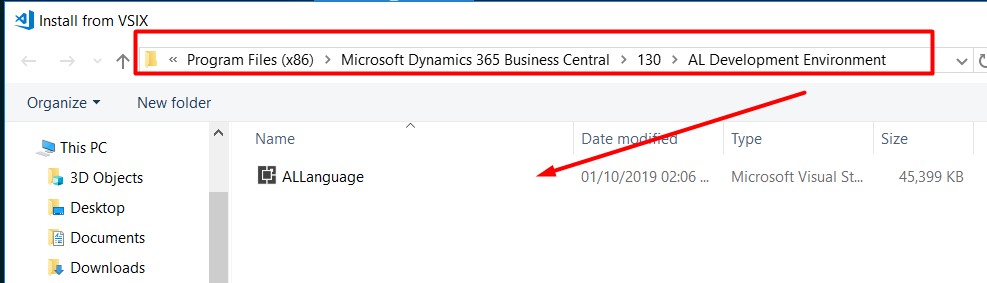
Install the Extension and reload the VS Code Client. You will see two Extension now for AL Language as shown below.

Keep the runtime as 2.2 and try to publish again.
Hope article helps you.
Regards,
Saurav Dhyani
www.sauravdhyani.com
Comments
Post a Comment