Hi all,
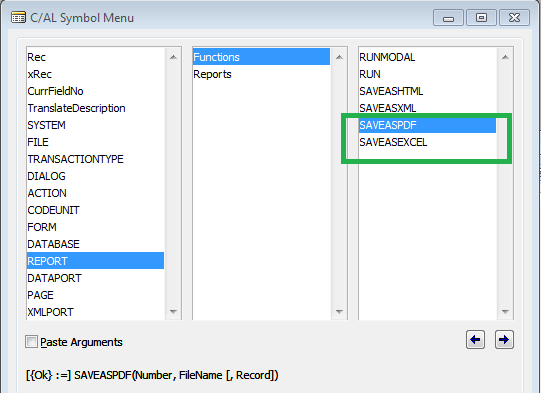
If you would have noticed with the introdcution of RTC Client in 2009 i.e NAV 2009, in C/AL Symbol Menu Report have some new options.
1. Save as PDF.
2. Save as Excel.

And after release of NAV 2013 There is one more addition to the list.
3. Save as Word.

Let's discuss what is required to use these options as then try to use them.
Requirement -
1) The Report that you are planning to save as PDF/Excel/Word should have RTC Layout Created. (Before NAV 2013)
So let's try this with a standard report Report 206 "Sales - Invoice" with NAV 2013.
I am adding options to Save AS in the Action of The Posted Sales Invoice Page as shown below.

Now i will add code in the all the actions as shown below.

So lets try to use these buttons from RTC.
I opened the Posted Sales invoice page in RTC, and as shown below i see three icons for save as PDF. save as word & save as excel.

As soon as i clicked on all these icons below is the output on my D Drive.
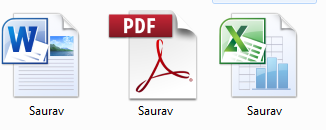
Here is how the output looks.

* Remember these functions will overwrite the file with same name in same location if any.
Future Customization (What i can think, you might add to this) -
a) Path can be setup based.
b) File name can be document Number.
c) Report No. can also be setup based.
d) This can be in one single button to save in all three formats.
e) You can automate it Via NAS.
I hope you will use these post for customization like sending reports to client in PDF/Word/Excel Format.
If Required download modified Page for NAV 2013 IN Version from my skydrive.
Regards,
Saurav Dhyani
saurav-nav.blogspot.in
If you would have noticed with the introdcution of RTC Client in 2009 i.e NAV 2009, in C/AL Symbol Menu Report have some new options.
1. Save as PDF.
2. Save as Excel.
And after release of NAV 2013 There is one more addition to the list.
3. Save as Word.

Let's discuss what is required to use these options as then try to use them.
Requirement -
1) The Report that you are planning to save as PDF/Excel/Word should have RTC Layout Created. (Before NAV 2013)
So let's try this with a standard report Report 206 "Sales - Invoice" with NAV 2013.
I am adding options to Save AS in the Action of The Posted Sales Invoice Page as shown below.

Now i will add code in the all the actions as shown below.

So lets try to use these buttons from RTC.
I opened the Posted Sales invoice page in RTC, and as shown below i see three icons for save as PDF. save as word & save as excel.

As soon as i clicked on all these icons below is the output on my D Drive.

Here is how the output looks.

* Remember these functions will overwrite the file with same name in same location if any.
Future Customization (What i can think, you might add to this) -
a) Path can be setup based.
b) File name can be document Number.
c) Report No. can also be setup based.
d) This can be in one single button to save in all three formats.
e) You can automate it Via NAS.
I hope you will use these post for customization like sending reports to client in PDF/Word/Excel Format.
If Required download modified Page for NAV 2013 IN Version from my skydrive.
Regards,
Saurav Dhyani
saurav-nav.blogspot.in
How to save with file name?
ReplyDelete@Vicky,
DeleteDo you want to specify the file name during Save as Option is clicked by user?