Hi all,
During upgrade one of the conman issue is extra language in database objects.
Consider a Scenario -
My client During implementation uses NAV 5.0 SP1 APAC Database.
But as the language English (New Zealand) was not required had been deleted before implementation.
Now client want to upgrade to NAV 2013 APAC. For comparison i require to create a base database which will be in my case NAV 5.0 SP1 APAC without Language
English (New Zealand).
Let's see how we can delete the Language Layer from a database. I will take example of above scenario.
1) Open NAV 5.0 SP1 APAC Database.
2) You can check existing Language From
- Open properties of any field in any table and check caption ML.
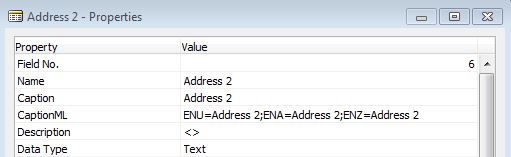
3) As per our requirement we don't require ENZ (English (New Zealand).
4) Open Object Designer, Select All Objects.
5) From Tools Click Language Module and select Export.

6) Provide the File Name, Select Language you want to delete and click Delete Language.

7) Click OK and it will remove the Language Layer from Objects.

8 Click on confirmation box for language deletion.
9) Reopen Navision and just to make sure repeat step 2.

So we have successfully deleted the language layer from the database objects.
In Next post we will see how to add the same language into another database objects.
Regards,
saurav Dhyani
During upgrade one of the conman issue is extra language in database objects.
Consider a Scenario -
My client During implementation uses NAV 5.0 SP1 APAC Database.
But as the language English (New Zealand) was not required had been deleted before implementation.
Now client want to upgrade to NAV 2013 APAC. For comparison i require to create a base database which will be in my case NAV 5.0 SP1 APAC without Language
Let's see how we can delete the Language Layer from a database. I will take example of above scenario.
1) Open NAV 5.0 SP1 APAC Database.
2) You can check existing Language From
- Open properties of any field in any table and check caption ML.

3) As per our requirement we don't require ENZ (English (New Zealand).
4) Open Object Designer, Select All Objects.
5) From Tools Click Language Module and select Export.

6) Provide the File Name, Select Language you want to delete and click Delete Language.

7) Click OK and it will remove the Language Layer from Objects.

8 Click on confirmation box for language deletion.
9) Reopen Navision and just to make sure repeat step 2.

So we have successfully deleted the language layer from the database objects.
In Next post we will see how to add the same language into another database objects.
Regards,
saurav Dhyani
Comments
Post a Comment