Hi All,
Let's start it from where we left in Last Post.
Recap - "We understand Concept of Extension Using an Example of Shipping of Jet Report Solutions. Later We did a customization on a Standard NAV 2016 W1 Database For Cancel Order Using Events. After That We Created an Manifest File for our Extension& Create the Navx Package for Our Extension. Later We Published Our Extension on a Cronus Database and then Installed It."
If you are not following the Extension Series Then Refer the Table of Contents For Extensions.
Now Let's see the Impact of Our Extension on My Database.
1. Role Tailored Client -
If I Open My Role Tailored Client I can see the functionality and customization that I Did, and its working also.

2. Let's see in SQL Database.
If I Open My SQL Server and Navigate to Tables Fields I can see all the Fields as shown Below.

So if my understanding is correct what would have happened when i Installed Package is, it would have merged my customization in the Extension_Demo2 Database. Then -
- What is the purpose of doing all these powershell cmdlets?
- Why A New Thing for Doing Same Old Stuff ?
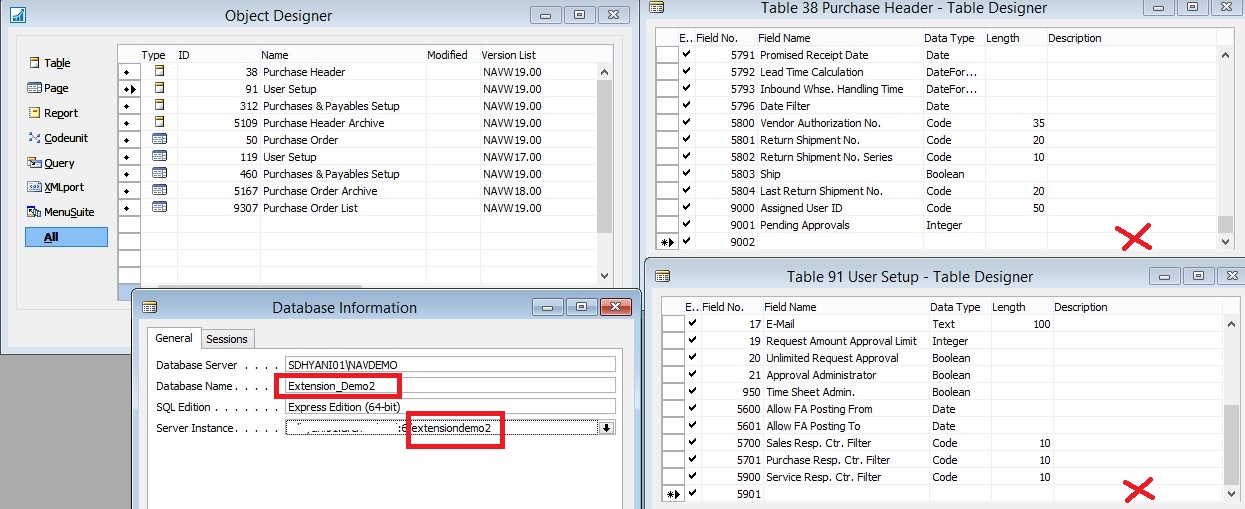
Let's Have a Look on Developer Environment.
- Where are my Fields?
- Where are My Actions?
- Where is My New Codeunit?

Confused ?? I was also confused about How my Role Tailored Client Know and how my SQL Server Knows but its not there in My Developer Environment.
Let's see where it is actually.
With Microsoft Dynamics Navision 2016 there were some New System Tables Added and some of them are for Extensions (App). Below is the List of Tables.
Table Filter - 2000000150..2000000166

All these tables actually store my Delta (which we created at first Step).
This Information will be available to user in Role Tailored Client when he/she usage it.
But the Best part is No one From Customer Development / IT team will be able to Modify or see the code in my Extension...
Table -NAV App Object Metadata, Stores the Information of My Object changes for all my Navx Package as shown below -

Table - NAV App Tenant App, Stores the Information of Navx in case of Multitenancy. Which Tenant have app Active.
Table - NAV App Data Archive, Store the Data Related to App if user select to archive data during Removal of Navx Package.
Table - NAV App Installed App, Store Information about Navx Package which are Installed in Database.
Table - NAV App, Store Information About Navx Packages which are Published in Database, but not installed.

Table - NAV App Dependencies, Store Information About Dependencies of Navx Package if Any on any other App.
Table - App Capabilities – List of capabilities for each extension that is published to the system. Pulled from the manifest at publication time.
Table - NAV App Object Prerequisites, Store Information About Pre-requisites That you provided During Creation of Navx Package.
Table -Tenant Permission Set , Defines the mapping between extensions and permission sets.
Table - Tenant Permission, Contains permissions for objects as defined by permission sets in extension packages.
Microsoft also include objects from extensions in the following virtual tables -
AllObj, AllObjWithCaption - includes new objects from all installed extensions based on the current session/tenant.
AllObj, AllObjWithCaption - includes the App Package ID field (empty GUID for base objects, package id GUID if object comes from an extension)
Hope most of the doubts are clear now. We still have more to see about Extensions.
Stay Tuned For More.
Regards,
+saurav dhyani
saurav-nav.blogspot.com
Let's start it from where we left in Last Post.
Recap - "We understand Concept of Extension Using an Example of Shipping of Jet Report Solutions. Later We did a customization on a Standard NAV 2016 W1 Database For Cancel Order Using Events. After That We Created an Manifest File for our Extension& Create the Navx Package for Our Extension. Later We Published Our Extension on a Cronus Database and then Installed It."
If you are not following the Extension Series Then Refer the Table of Contents For Extensions.
Now Let's see the Impact of Our Extension on My Database.
1. Role Tailored Client -
If I Open My Role Tailored Client I can see the functionality and customization that I Did, and its working also.

2. Let's see in SQL Database.
If I Open My SQL Server and Navigate to Tables Fields I can see all the Fields as shown Below.

So if my understanding is correct what would have happened when i Installed Package is, it would have merged my customization in the Extension_Demo2 Database. Then -
- What is the purpose of doing all these powershell cmdlets?
- Why A New Thing for Doing Same Old Stuff ?
Let's Have a Look on Developer Environment.
- Where are my Fields?
- Where are My Actions?
- Where is My New Codeunit?
Confused ?? I was also confused about How my Role Tailored Client Know and how my SQL Server Knows but its not there in My Developer Environment.
Let's see where it is actually.
With Microsoft Dynamics Navision 2016 there were some New System Tables Added and some of them are for Extensions (App). Below is the List of Tables.
Table Filter - 2000000150..2000000166

All these tables actually store my Delta (which we created at first Step).
This Information will be available to user in Role Tailored Client when he/she usage it.
But the Best part is No one From Customer Development / IT team will be able to Modify or see the code in my Extension...
Table -NAV App Object Metadata, Stores the Information of My Object changes for all my Navx Package as shown below -

Table - NAV App Tenant App, Stores the Information of Navx in case of Multitenancy. Which Tenant have app Active.
Table - NAV App Data Archive, Store the Data Related to App if user select to archive data during Removal of Navx Package.
Table - NAV App Installed App, Store Information about Navx Package which are Installed in Database.
Table - NAV App, Store Information About Navx Packages which are Published in Database, but not installed.

Table - NAV App Dependencies, Store Information About Dependencies of Navx Package if Any on any other App.
Table - App Capabilities – List of capabilities for each extension that is published to the system. Pulled from the manifest at publication time.
Table - NAV App Object Prerequisites, Store Information About Pre-requisites That you provided During Creation of Navx Package.
Table -Tenant Permission Set , Defines the mapping between extensions and permission sets.
Table - Tenant Permission, Contains permissions for objects as defined by permission sets in extension packages.
Microsoft also include objects from extensions in the following virtual tables -
AllObj, AllObjWithCaption - includes new objects from all installed extensions based on the current session/tenant.
AllObj, AllObjWithCaption - includes the App Package ID field (empty GUID for base objects, package id GUID if object comes from an extension)
Hope most of the doubts are clear now. We still have more to see about Extensions.
Stay Tuned For More.
Regards,
+saurav dhyani
saurav-nav.blogspot.com
Comments
Post a Comment