
For my Next article I was installing Business Central 2020 Release Wave 1.
While Doing this I encountered an error message and what else would be a good place to share here with the community.
So If you are stuck during installation of Business Central 2020 Wave 1 please read ahead.
#MSDyn365bc, #2020Wave1, #Installation.
You will only get error message when -
You are trying to Install Demo from Setup
OR
You have selected SQL Server Database Components.
Error Message -

SQL Server Database Components
Cronus Sample Database for Microsoft Dynamics 365 Business Central
Fatal error during installation.
Database 'Demo Database BC (16-0)' cannot be started in this edition of SQL Server because part or all of object 'CRONUS Mexico S_A_$Job Queue Log Entry$437dbf0e-84ff-417a-965d-ed2bb9650972' is enabled with data compression or vardecimal storage format. Data compression and vardecimal storage format are only supported on SQL Server Enterprise Edition.'
How To Fix Error Message?
When i checked the System Requirements for Dynamics 365 Business Central 2020 Release Wave 1 There was the problem.
Refer System Requirement Here.
(Section - Business Central Database Components for SQL Server Requirements)
The SQL Server Requirement for MSDYN365BC - 2020 Wave 1 is (one of those) -
- Microsoft SQL Server 2019 Express, Standard, or Enterprise.
- Microsoft SQL Server 2017 Express, Standard, or Enterprise.
- Microsoft SQL Server 2016 Express, Standard, or Enterprise (Service Pack 1 or later).
- Azure SQL Database Managed Instance, Elastic Pool, or Single Database.
So we needed to downloaded and installed Microsoft® SQL Server® 2016 Service Pack 2 (SP2).
You Can download SQL Server Express From MSDN Link.
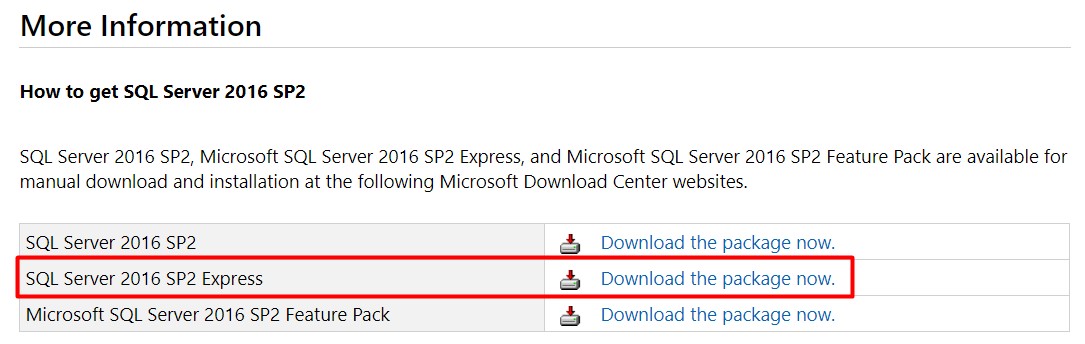
After Installation of SQL Server 2016 Service Pack 2, Run Setup again and Business Central 2020 Wave 1 Should get installed without any issues.
Hope you find this article useful.
Regards,
Saurav Dhyani
www.sauravdhyani.com
Hello Saurav,
ReplyDeleteNice blog, which you said is absolutely correct, we can resolve this problem in one more way, by giving the new SQL INSTANCE name while installing the Business Central, so it will install the SQL Express edition and also it will create the new SQL INSTANCE so that will resolve this issue.
That's True.
DeleteBut if SQL is already installed with Previous version of Dynamics NAV or Business Central then setup auto picks it and don't install new express version.
But if you are starting fresh with Business Central then you will have no issues.