RDLC Report - The tablix ‘Tablix1’ has a detail member with inner members. Detail members can only contain static inner members.
Hi Readers,
In This article we will discuss how to resolve an Issue that we face During Creation of a RDLC Report.
Applies To - NAV 2009 and Later (RDLC Reports)
Scenario -
You are creating Say a Document Report. There are multiple tables in Body. For Linking these tables you put all these tables inside a List.
When You want to save the Report, You get an Error Message -
Error while validating RDL content:
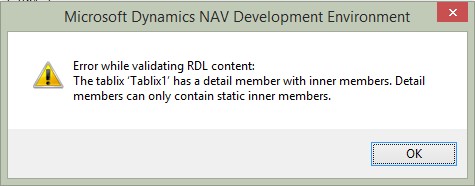
The tablix ‘Tablix1’ has a detail member with inner members. Detail members can only contain static inner members.
How To Resolve Error?
Select the List and From Row Group Select Group Properties.

Select Add in General Tab and Add the Group Fields for the List.

Save the Report.
You Need to Add the Fields based on Which you want to repeat all the tables inside List.
For Example If Its a Sales Order Report Then You want to Group on -
Document Type
Document No.
Hope it make sense and will help you if you face the Above issue.
Regards,
Saurav Dhyani
In This article we will discuss how to resolve an Issue that we face During Creation of a RDLC Report.
Applies To - NAV 2009 and Later (RDLC Reports)
Scenario -
You are creating Say a Document Report. There are multiple tables in Body. For Linking these tables you put all these tables inside a List.
When You want to save the Report, You get an Error Message -
Error while validating RDL content:
The tablix ‘Tablix1’ has a detail member with inner members. Detail members can only contain static inner members.
How To Resolve Error?
Select the List and From Row Group Select Group Properties.

Select Add in General Tab and Add the Group Fields for the List.

You Need to Add the Fields based on Which you want to repeat all the tables inside List.
For Example If Its a Sales Order Report Then You want to Group on -
Document Type
Document No.
Hope it make sense and will help you if you face the Above issue.
Regards,
Saurav Dhyani
thanks
ReplyDeleteThank you :)
ReplyDeleteGreat to hear that.
DeleteYa Thanks for that it works
ReplyDeleteGreat to hear that it was still useful
Delete